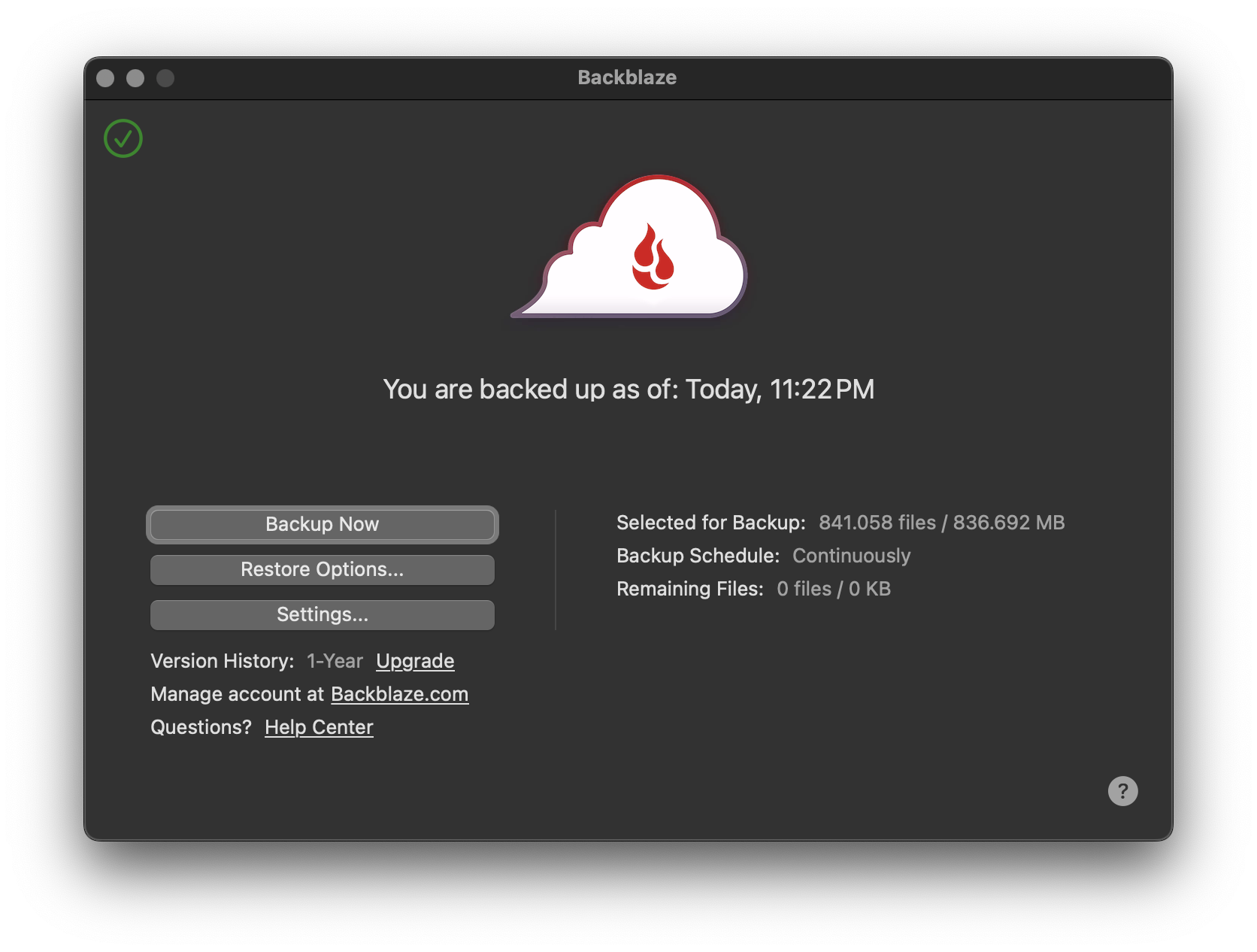
Now that I already wrote about Backblaze for another reason, I’ll also finally take a moment for a different rant related to their software. This screenshot is almost a year old, because I couldn’t quite figure out how to do this post – it can’t really be visualized. (In the time I procrastinated on this post, there’s been a different shitstorm that I luckily don’t need to care about personally.)
As already indicated in my last post, Backblaze very much has a “hide the details” approach to their software. No version number, updates somehow magically happen over time by themselves – even finding the installer to do it manually is a challenge. Despite being a highly technical product and exposing some pretty complicated settings.
One of the things they hide extremely well is any sort of progress or detailed logging/debug information. All you get is basically the window shown above. “We backed up this much, and it’s all good. Trust me, bro.”
Unfortunately this frequently is simply not true. From time to time I deal with files that are so important to me that I verify they have been backed up to feel safe. (Yes, I do back those up to more places than just Backblaze.) When a new file like that comes into being, I go into Backblaze’s restore mode to make sure the file is showing up there. Too often it isn’t. Despite the “trust me bro” reassurance.
In that scenario, you just can’t do jack shit. I dug into whatever logs can be found, every UI option, crawled through old forum threads and Reddit posts with certain incantations. I rebooted the computer. I reconnected all the disks. touch’d the file, renamed the file, moved the file away and back. Reinstalled the software. Still, no matter how often I clicked Backup Now, it would always just buzz away for a moment and then happily report back that it’s all done. You are backed up as of now! But unfortunately I still wasn’t. That’s a pretty significant problem for a backup service.
So after a couple of days of this not resolving itself with enough time, I finally gave in and reached out to support. To be fair, that wasn’t as useless as I expected it to be. But the solution they presented is wild enough that I’ll just quote it here entirely:
follow these steps:
• Connect all disconnected drives.
• Ensure Backblaze is set to “Continuously” (Backblaze Preferences/Control Panel -> Settings -> Schedule)
• Make sure all drives you want backed up are checked (Backblaze Preferences/Control Panel -> Settings; bottom box “Hard Drives to back up”)
• Create a single, small file on the drive in question - just a simple text file is fine.Then follow these steps to update your application:
• Restart your computer.
• Download the latest installer from this link: https://secure.backblaze.com/update.htm
• Do not uninstall Backblaze. Simply run the installer over your current version.
• Restart your computer once again.
• Then, go to Backblaze Preferences/Control Panel and hold Alt or Option and click “Restore Options.” Let it run for at least 4 hours, then see if the small files you created backed up, and if the date of the drive’s last update also updated.Please note that both reboots are necessary; do not skip these steps.
Of course by the time I had received those instructions, the problem had solved itself already after all – so I can’t say if I could have saved myself a couple of days of hassle and waiting if I had known to reboot my computer twice around reinstalling the software before holding Alt or Option while clicking Restore Options and then waiting for four hours.
Can’t believe I didn’t just think of trying this myself!